
When a cloud server keeps restarting again and again , this problem is known as a boot loop. At first , it can feel stressful and confusing , especially if you are new to cloud servers. The server looks like it is running but you cannot access it through SSH and it never fully starts.
The good news is that most cloud server boot loop issues are common and fixable. In many cases , the cause is something simple , like a full disk , a failed update or a small configuration mistake. You can handle this without being a professional.
This guide is written for beginners and mixed users who use Linux based cloud virtual machines. The commands are simple , explanations are clear and the steps move from easy fixes to more advanced but safe solutions.
In this guide , you will learn:
- How to prevent boot loop issues in the future
- What a cloud server boot loop is
- Common reasons Linux cloud servers get stuck rebooting
- Quick checks you should do first
- Step-by-step fixes using rescue mode
- When to restore from backup or contact support
What Is a Cloud Server Boot Loop?
A cloud server boot loop happens when the server starts, fails during startup , restarts automatically and repeats this process endlessly. The operating system never fully loads , so the server remains unusable.
Common signs:
- Server status shows Running, but it never becomes reachable
- Console shows errors and restarts automatically
- SSH never connects
- Server worked fine before an update or restart
Simple explanation:
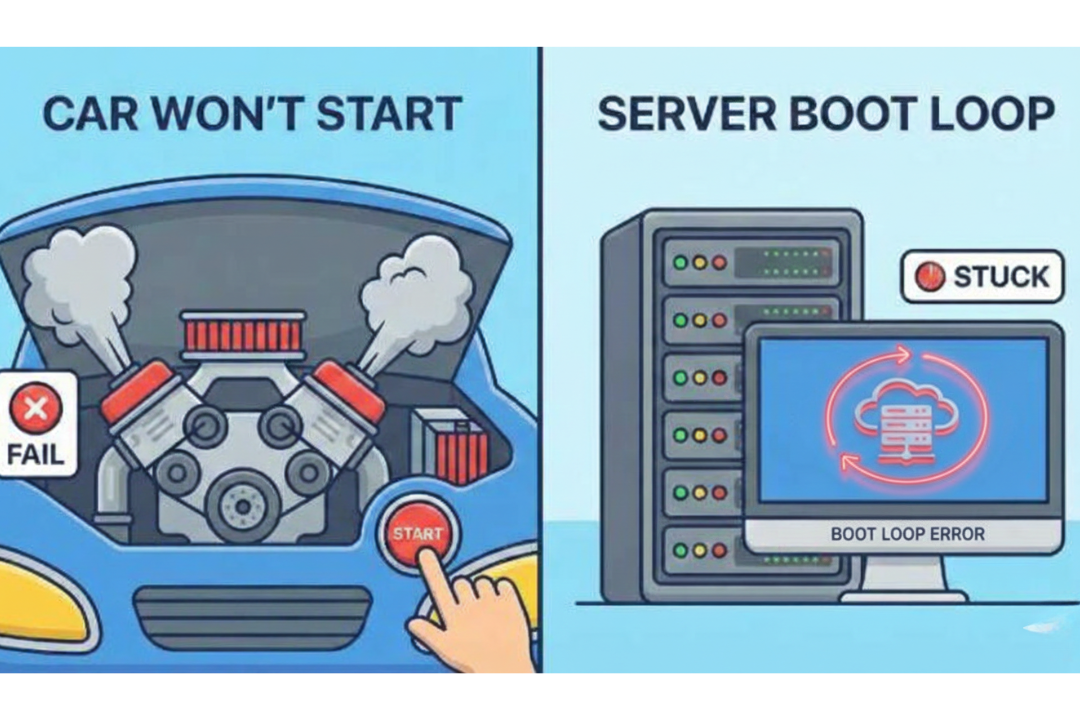
Think of your server like a car.
If the engine fails while starting , the car keeps trying to start but never moves forward. A boot loop works the same way
Common Reasons a Cloud Server Gets Stuck Rebooting
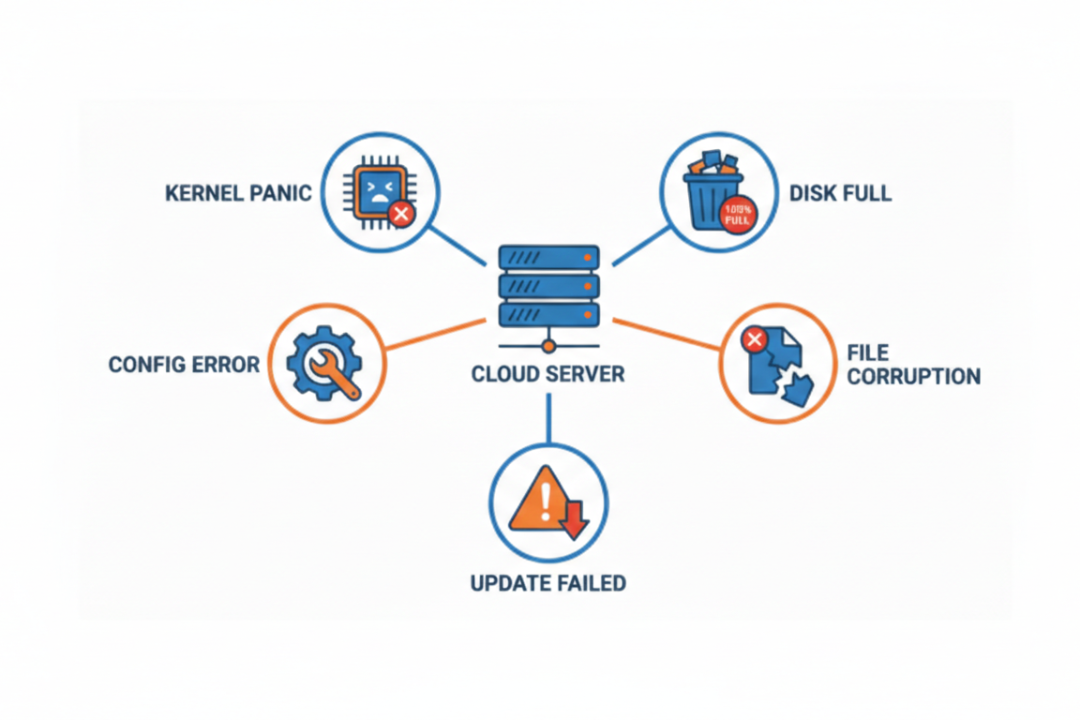
For Linux cloud virtual machines , boot loops usually happen because of one or more of the following reasons:
- Disk is full
- File system is corrupted
- Failed system update
- Wrong configuration file (/etc/fstab)
- Bootloader damage
- Kernel panic (OS crash during startup)
Don’t worry you don’t need to fix all of these.
start with these easy checks.
Quick Checks Before You stress (2-Minute Fixes)
Before doing anything advanced , go through these simple checks.
1. Check Cloud Provider Status
- If your provider has maintenance or outage, wait.
- Restarting won’t help.
2. Check Server Power State
From the cloud panel:
- If server is Stopped, start it
- If it crashes instantly, move to console check
3. Open the Server Console
Use the console / serial console in your cloud dashboard.
- If you see error messages → good, we can fix it
- If it freezes or restarts → continue below
4. Try One Safe Reboot
- Only once.
- Constantly restarting can make the problem worse.
Fix #1: Disk Full or File System issues (Most Common)
A completely filled disk is one of the main causes of boot loop issues.
Why this causes a boot loop
Linux needs free space to start services.
When the disk reaches full capacity, the system can crash and automatically restart.
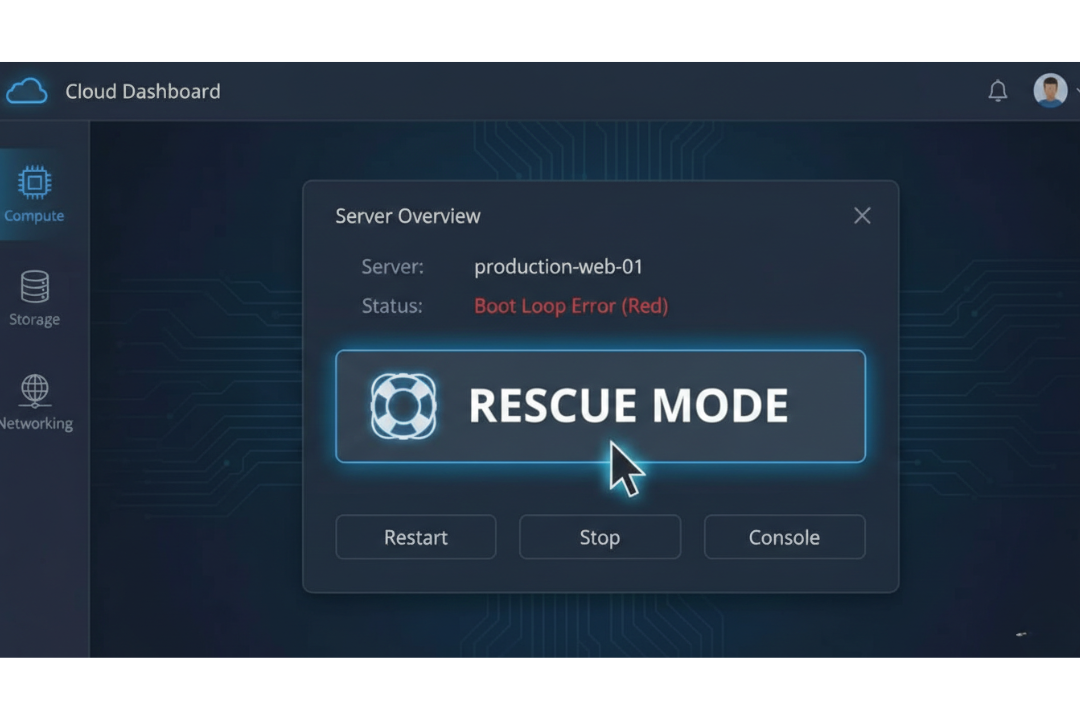
Fix using Rescue Mode
Most cloud providers allow Rescue / Recovery Mode.
Once inside rescue mode, run:
df -h
If you see 100% usage, clean space:
rm -rf /var/log/*.log
rm -rf /tmp/*
Then check file system errors:
fsck -y /dev/vda1
Reboot after it finishes.
Fix #2: Failed Update or Kernel Panic
If your server stopped working right after a system update, this is often the cause.
What is a kernel panic?

The kernel is the core of Linux.
If it crashes, the server will stop working.
What to do
- Open the server console
- Look for messages like:
- Kernel panic
- Unable to mount root filesystem
Simple fix:
Boot into rescue mode and:
- Undo recent config changes
- Restore a working kernel (if available)
- Or move to snapshot restore (explained later)
Fix #3: Broken Configuration File (fstab error)
A small mistake in the /etc/fstab file can stop the server from booting.
Why this happens
Linux tries to mount disks during startup.
If one disk is missing or wrong → boot fails.
Fix in rescue mode
Mount the disk:
mount /dev/vda1 /mnt
Edit fstab:
nano /mnt/etc/fstab
- Comment out suspicious lines
- Save and exit
Unmount and reboot.
Fix #4: Rescue Mode & Disk Attachment (Advanced but Safe)
If the server still does not boot , use one of these options.
Option A: Attach Disk to Another VM
- Detach disk from broken server
- Attach it to a working Linux VM
- Mount and fix files manually
- Re-attach and reboot
Option B: Restore from Snapshot

If you have a snapshot or backup, restore it.
This is the fastest and safest fix when:
- Data is important
- Boot errors are unclear
- Time matters
When You Should Restore From Backup
Restore immediately if:
- File system repair fails
- Kernel is badly damaged
- Bootloader is missing
- Server was compromised
Trying to “force fix” can cause data loss.
When to Contact Support (And What to Send)
Contact support if:
- Server never reaches login
- Console shows repeating errors
- Rescue mode doesn’t help
Send them:
- Screenshot of console errors
- What changed before the issue (update, restart)
- What you already tried
This saves hours.
How to Prevent Boot Loop Issues in the Future
Simple habits prevent most boot loops:
- Keep 20–30% disk space free
- Enable automatic snapshots
- Avoid force shutdowns
- Update system carefully
- Monitor disk and memory usage
- Test changes on staging first
Prevention is easier than recovery.
Final Thoughts:

Windows Server boot issues can look scary , but most are fixable with a calm , step-by-step approach. Start with simple checks , move to safe repairs and avoid rushing into risky actions.
With proper maintenance and backups , even serious boot problems can be resolved with minimal downtime.