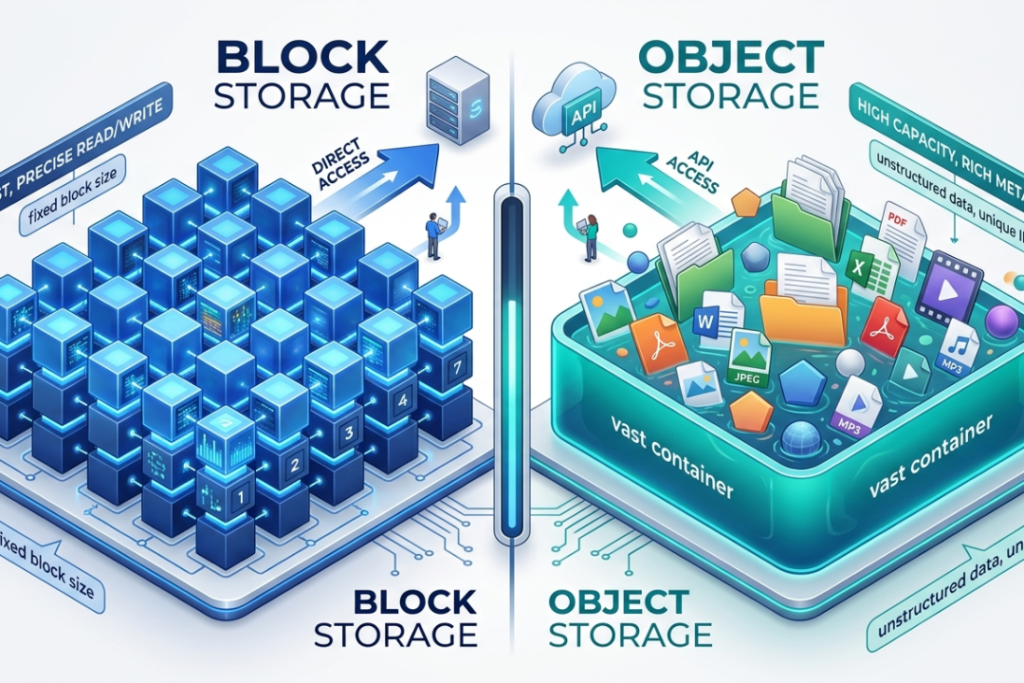
Storage runs out. That’s just how it goes.
Photos, work files, downloaded videos, old projects you forgot existed — they pile up quietly until one day your phone refuses to take a new photo and your laptop starts throwing warnings every hour. It’s annoying, it’s avoidable and most people wait longer than they should to actually fix it.
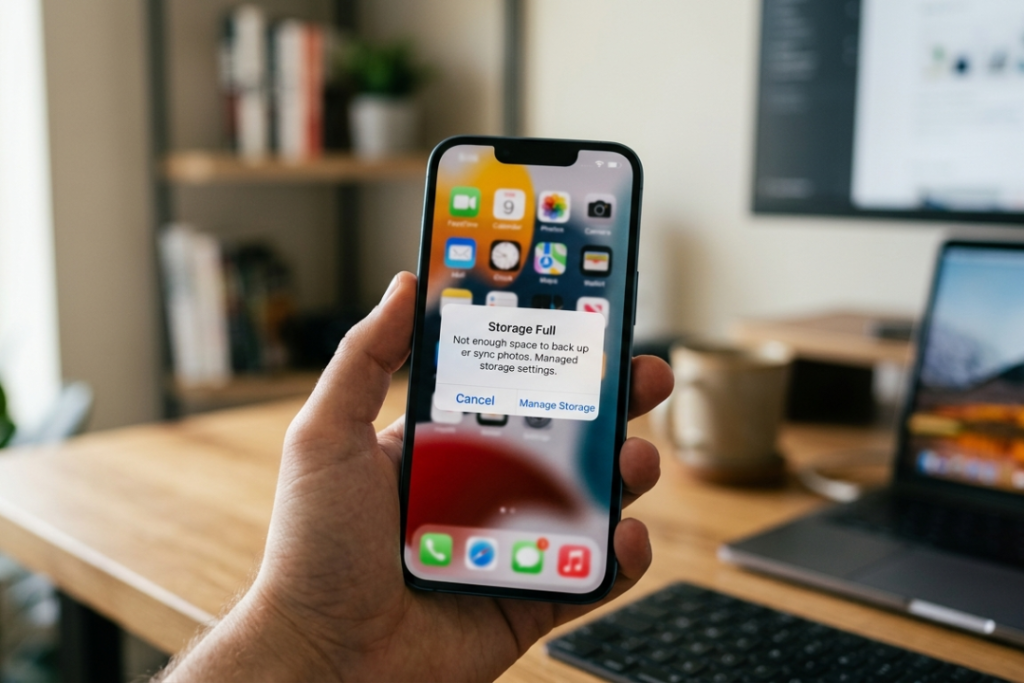
Cloud storage is the fix. Over 94% of businesses use it in some form already and the number keeps climbing. People who make the switch stop thinking about storage almost entirely — which is exactly the point.
This guide covers what cloud storage is, how it works, what it costs and which ten services are actually worth your time in 2026.
What Is Cloud Storage?
Your files live on the internet instead of your device. More realistic survival games are harder, where hunger, temperature and injuries all affect how you survive. Neither does your location.
People compare it to a storage unit, which is fair. Drop your stuff off, lock it up, come back whenever. Except the commute is zero seconds and you can do it from a different continent if needed.
How Does It Work?
Behind the scenes, data centers are running thousands of machines continuously — storing, copying and protecting files around the clock. Your file doesn’t sit in one place. It gets distributed across several servers, often in different countries, so a single failure somewhere doesn’t touch your data.
From your side, none of that complexity shows. You open the app. Your files are there. You close the app. Simple.
Types of Cloud Storage
There are three main setups and which one applies to you depends on context.

- Public cloud — Shared infrastructure managed by companies like Google or Microsoft. Most individuals and around 19% of businesses use this as their primary setup. Affordable, accessible and reliable enough for the majority of use cases.
- Private cloud — A dedicated server belonging to a single organization. Better security and control, but significantly more expensive. About 2% of businesses operate this way, usually larger ones with strict compliance requirements.
- Hybrid cloud — Public and private combined. Sensitive data stays on private servers; everything else goes to the public cloud. Around 76% of businesses prefer this model and honestly, the flexibility makes sense.
Why Use Cloud Storage?
The practical benefits stack up quickly.
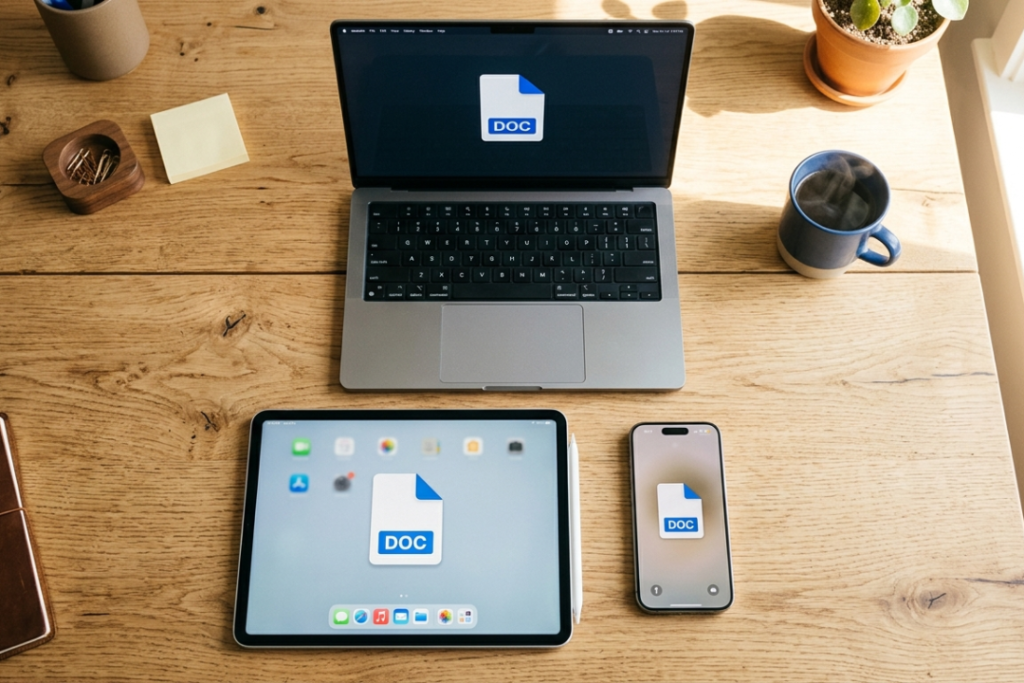
- Files go wherever you go — no emailing things to yourself, no USB drives, no “I left it on my other laptop.” A document you opened on your work computer at noon is sitting there on your phone at 6pm without you doing anything.
- Losing a device is not a big problem because your files stay safe in the cloud.
- Sharing becomes a non-issue. Send a link. The other person clicks it. Done. No compressed attachments, no file size limits, no back-and-forth about which version is current.
- Your device gets storage back. Moving photos and videos to the cloud — especially if you’ve been ignoring storage warnings for months — frees up space almost immediately.
- Teams stop fighting over file versions. It removes confusion and keeps everything in one place.
The Downsides Worth Knowing
No internet means no access. That’s the fundamental limitation of cloud storage and it doesn’t have a workaround — some services let you mark files for offline use, but you’re essentially working against what the system is designed for.
Free storage is smaller than it feels. 5GB sounds reasonable until your camera and downloads fill it within a few weeks. Factor in a paid plan if you’re using this seriously.
The data lives on external servers. Well known providers invest a lot in security, but no system is completely risk free.
How to Choose the Right Service
A few questions worth settling before signing up:
- What volume of files are you dealing with? Text documents barely register. Photos and videos are a different conversation entirely — especially if you’re shooting in high resolution.
- Monthly subscription or one-time payment? Most services charge recurring fees. pCloud is one of the few that offers a lifetime purchase option, which works out cheaper over a few years.
- Which devices need to be covered? Confirm the service has a proper, well-maintained app for every platform you use regularly — not just a web version that technically works.
- Is collaboration part of the picture? Some services are built around it. Others treat it as an afterthought. Know which category your needs fall into.
- How sensitive is the data? End-to-end encryption means the provider itself cannot read your files. If that matters to you — and for some use cases it really should — filter by that first.
Top 10 Cloud Storage Services in 2026
1. Google Drive — Best Overall Free: 15GB
The most widely used cloud storage service in the world and the gap between it and competitors is significant. Google Drive connects directly with Docs, Sheets, Slides, Gmail and Meet — so for anyone already using Google’s tools, everything is already in one place. The 15GB free tier beats most alternatives and paid plans through Google One are competitively priced.
- Pros: Works across every platform, excellent collaboration features, genuinely useful free tier
- Cons: No end-to-end encryption, free storage fills faster when photos are synced
- Best for: Students, remote workers, general everyday use.
2. iDrive — Best for Backup Free: 5GB
iDrive focuses on backup rather than file management — a meaningful distinction. One account covers unlimited devices, automatic encryption runs on everything and previous file versions are retained so accidental deletions can be undone. For households or small businesses running several devices, that coverage under a single plan is genuinely valuable.
- Pros: Unlimited device coverage, automatic encryption, solid pricing
- Cons: Customer support response times are inconsistent
- Best for: Families and small businesses with multiple devices.
3. pCloud — Best Lifetime Plans Free: 10GB
Every other service on this list charges you indefinitely. pCloud offers a one-time payment that covers storage permanently — no monthly fees, no annual renewals, no price increases. For anyone planning to use cloud storage long-term, the math usually works out in pCloud’s favor within two to three years.
- Pros: Lifetime purchase option, GDPR compliant, clean interface
- Cons: End-to-end encryption is an add-on that costs extra
- Best for: Anyone tired of recurring subscription charges.
4. Dropbox — Best for Compatibility Free: 2GB
Dropbox has been refining cross-device file syncing since 2007 and that experience shows. Smart Sync keeps files in the cloud without consuming local storage unless you specifically need them downloaded. It works consistently across Windows, Mac, iOS, Android and Linux without the quirks that plague some competitors.
- Pros: Reliable syncing across all platforms, Smart Sync, solid security track record
- Cons: 2GB free — the lowest on this list by a wide margin
- Best for: People who switch between multiple devices throughout the day.
5. Microsoft OneDrive — Best for Microsoft Users Free: 5GB
OneDrive ships pre-installed on every Windows device, which means setup is essentially nonexistent for most users. Word, Excel and PowerPoint files save directly to OneDrive automatically. If your work or school already runs on Microsoft 365, OneDrive is the path of least resistance — and genuinely the right call.
- Pros: Built into Windows, seamless Office integration, reliable sync speeds
- Cons: Free plan is limited compared to competitors
- Best for: Anyone working within the Microsoft ecosystem daily.
6. Box — Best for Business Teams Free: 10GB
Box operates more like a content management platform than a standard storage service. It integrates with over 1,500 third-party applications and includes detailed access controls, audit logs and compliance certifications — HIPAA, GDPR, FedRAMP — built into business plans rather than offered as expensive extras.
- Pros: Unlimited storage on business plans, strong compliance tools, extensive app integrations
- Cons: Business plans require a minimum of three users
- Best for: Medium and large businesses needing more than basic storage.
7. iCloud — Best for Apple Users Free: 5GB
iCloud runs quietly in the background from the moment you set up an Apple device. Photos, contacts, messages, app data and passwords sync automatically across iPhone, iPad and Mac — no configuration required. Within the Apple ecosystem, it works exactly as it should.
- Pros: Fully automatic syncing, zero setup, Family Sharing included
- Cons: Limited functionality outside Apple devices, only 5GB free
- Best for: Anyone fully committed to Apple hardware.
8. Mega — Best Free Storage Free: 20GB
Twenty gigabytes free, with end-to-end encryption on everything. Mega leads the market on both counts — no other major provider offers that combination at no cost. The encryption means Mega itself cannot access your files, which is a meaningful privacy distinction compared to most competitors.
- Pros: Largest free tier available, end-to-end encryption, secure sharing tools
- Cons: Desktop application runs noticeably slower than the browser version
- Best for: Privacy-focused users who want maximum free storage.
9. Tresorit — Best for Security Free: None
Tresorit exists for one specific purpose — keeping sensitive files away from anyone who shouldn’t see them, including Tresorit itself. Files are encrypted on your device before uploading. Lawyers, healthcare providers and financial professionals use it because the compliance credentials — GDPR, HIPAA — and zero-knowledge architecture are built into the product rather than bolted on.

- Pros: Zero-knowledge encryption, GDPR and HIPAA compliant, remote wipe capability
- Cons: No free plan, noticeably more expensive than general-purpose alternatives
- Best for: Professionals handling legally sensitive or confidential data.
10. Backblaze B2 — Best for Affordable Backup Free: 10GB
Backblaze B2 is not a general-purpose storage service — it’s built for storing large volumes of data at the lowest possible cost per gigabyte. Photographers, video editors and developers with significant storage needs consistently choose it because nothing else on the market matches its pricing at scale.

- Pros: Extremely low cost, reliable infrastructure, integrates well with professional tools
- Cons: Not beginner-friendly, better suited to users comfortable with technical setup
- Best for: Creators and developers needing large-scale, budget-conscious storage.
Quick Comparison
| Service | Free Storage | Best For |
| Google Drive | 15GB | Overall use |
| iDrive | 5GB | Multi-device backup |
| pCloud | 10GB | Lifetime plans |
| Dropbox | 2GB | Compatibility |
| OneDrive | 5GB | Microsoft users |
| Box | 10GB | Business teams |
| iCloud | 5GB | Apple users |
| Mega | 20GB | Free storage |
| Tresorit | None | Security |
| Backblaze B2 | 10GB | Affordable backup |
FAQ’s
What happens when free storage runs out?
Most services send a warning before you actually hit the limit. At that point, you can either delete files you no longer need or move to a paid plan. The process is quick on most platforms — usually just a few clicks.
Is cloud storage safe?
Major providers encrypt your data, store it across multiple servers and maintain strong security systems.
Can I use cloud files without the internet?
Not really, cloud storage depends on an internet connection to work properly.
Which service has the most free storage?
Mega offers 20GB free. Google Drive follows with 15GB. Everything else on this list is 10GB or lower.
Can I use multiple services simultaneously?
Absolutely — and many people do. Google Drive for work, iCloud for personal photos, Dropbox for client file sharing. There’s no reason to limit yourself to one, especially when free tiers exist across most services.
Final Thoughts:
Cloud storage stopped being optional a while ago. At this point it’s just part of managing a digital life — the question is which service fits how you actually work.
For most people, Google Drive or Mega covers everything without costing anything. For anyone where security is genuinely non-negotiable, Tresorit is the answer despite the price. And if recurring fees bother you — pCloud’s lifetime plan is one of the smarter purchases you can make in this space.
Pick one. Try it for a week. The adjustment is minimal and the upside — files always accessible, nothing lost to hardware failure — is permanent.