A Windows Server boot issue happens when the server fails to start properly. Instead of loading Windows, the server may restart repeatedly, freeze on a loading screen or show errors like “No boot device found” or “Boot device inaccessible.”
Servers power important things like websites, databases and business software, so boot issues can lead to downtime. The good part is that most Windows Server boot problems can be fixed by following the right steps in order.
This guide explains why boot issues happen, how to fix them and how to prevent them in the future, using simple language.
Common Causes of Windows Server Boot Issues
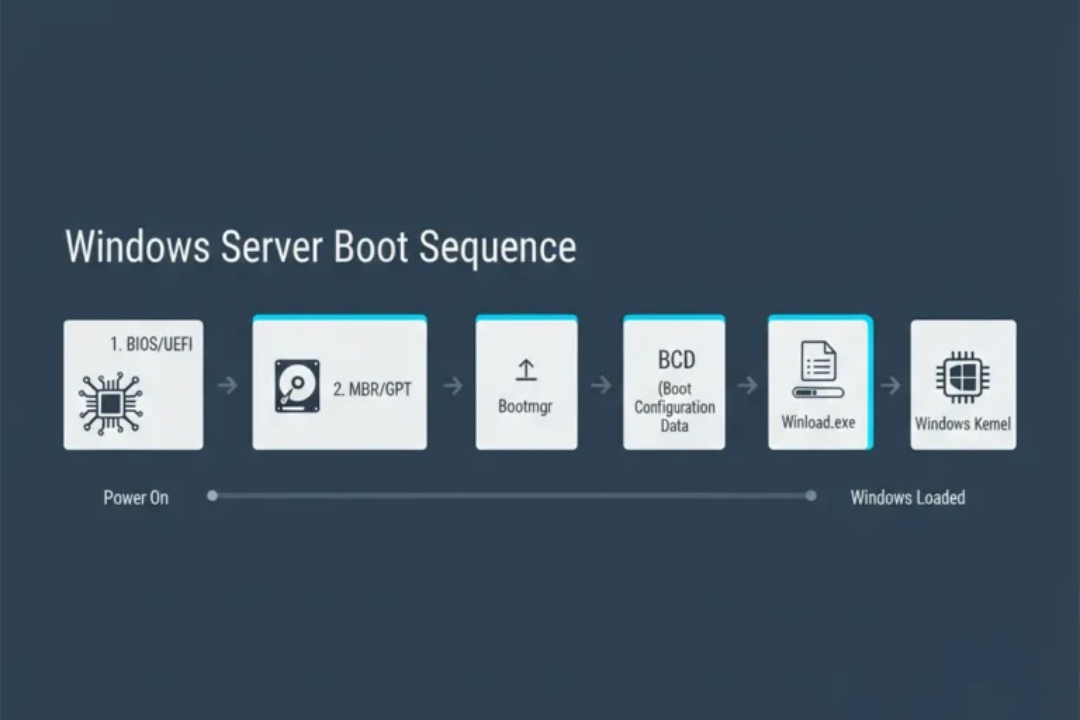
Understanding the reason helps you fix the issue correctly instead of guessing.
1. Corrupted Boot Files (MBR / BCD)
Windows uses special boot files to start the system. If these files are damaged or missing, the server cannot load Windows.
Common reasons:
- Sudden power loss
- Forced shutdowns
- Malware
- Disk errors
2. Faulty or Incomplete Windows Updates
Sometimes a Windows update installs incorrectly or conflicts with drivers. This is very common on:
- Windows Server 2019
- Windows Server 2022
- Windows Server 2025
In many cases, the server worked fine before the update and failed right after rebooting.
3. Disk or Storage Problems
If Windows cannot read the system disk, it will not boot.
This can happen due to:
- Failing HDD or SSD
- RAID issues
- Corrupted file system
- Network-based storage (such as iSCSI)
4. Driver or Service Conflicts
A bad driver or service can crash Windows during startup, especially after:
- Driver updates
- Software installation
- Security changes
5. BIOS / UEFI or Boot Order Issues
If the system tries to start from the wrong disk or device, Windows will not load.
This often happens after:
- Hardware changes
- BIOS updates
- VM configuration changes
First Things to Check Before Repairing
Before running repairs, do these quick checks:
- Restart the server once (to rule out a temporary glitch)
- Ask: Did this start after an update?
- Check if it is a physical server or a virtual machine
- Take a snapshot or backup if possible
These steps can help save time and protect your data.
How to Open the Windows Server Recovery Environment (WinRE)
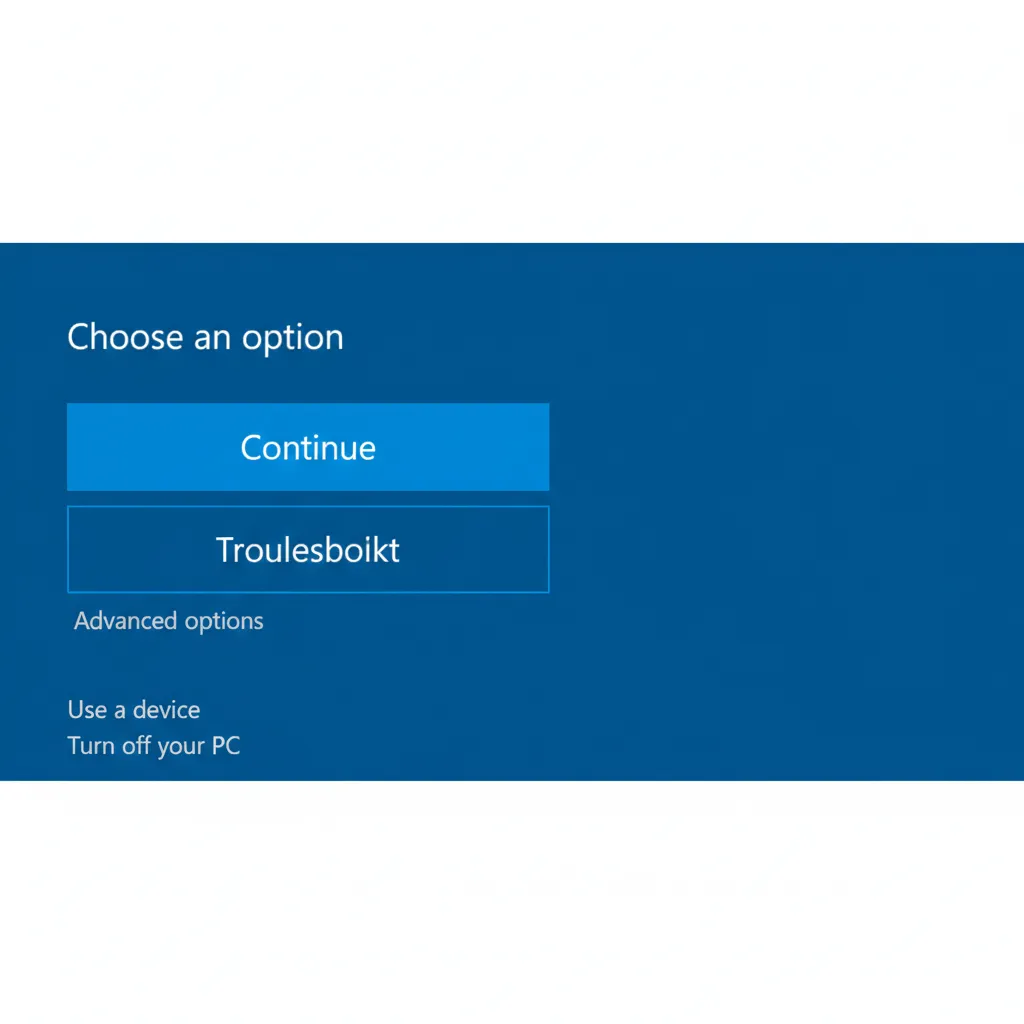
Most repair tools are inside the Windows Recovery Environment.
You can access it by:
- Booting from Windows Server installation media
- Using forced restarts (power off during boot, 2–3 times)
- Opening the VM console (for virtual servers)
Path:
Repair your computer → Troubleshoot → Advanced options
Step by Step Windows Server Boot Repair Methods
Start with the safest option and move forward only if needed.
1. Run Startup Repair (First Step)
Startup Repair checks for common startup issues and fixes them automatically.
Use when:
- The server suddenly stopped booting
- The issue is software related
Limit:
It cannot fix hardware failures or severe corruption
2. Boot into Safe Mode or DSRM
Safe Mode starts Windows with only basic drivers.
- Use Safe Mode for normal servers
- Use Directory Services Restore Mode for Domain Controllers
If the server starts in Safe Mode, the problem is often:
- A driver
- A service
- A recent update
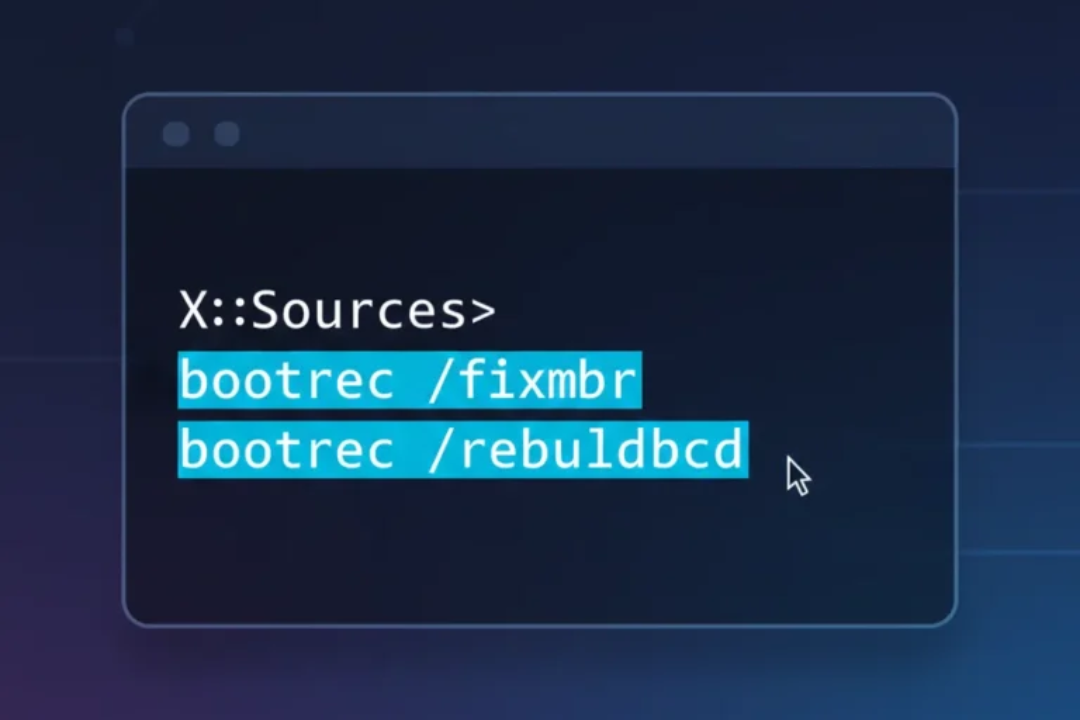
3. Repair Boot Configuration (bootrec)
If boot files are damaged, use Command Prompt in recovery mode.
Common commands:
- bootrec /fixmbr
- bootrec /fixboot
- bootrec /rebuildbcd
These rebuild the startup structure that Windows needs to load.
4. Check Disk Errors with CHKDSK
Disk errors can stop Windows from finding boot files.
Run:
chkdsk C: /f
This fixes file system errors and marks bad sectors.
5. Repair System Files with SFC
If Windows system files are corrupted, use:
- sfc /scannow
This is very helpful after:
- Failed updates
- Malware damage
- Unexpected shutdowns
6. Use System Restore
System Restore puts Windows back to a working state without deleting files.
Use it if:
- A restore point exists
- The issue started after a system change
Fix Boot Issues Caused by Windows Updates
Update related boot failures are very common.
Best approach
- Boot into Safe Mode
- Uninstall the latest update
- Restart normally
- Pause updates temporarily
This method works well on Windows Server 2019, 2022 and 2025.
Virtual Machine Specific Boot Issues
VMs have extra factors that affect booting.
Common causes:
- Broken or missing snapshots
- Storage controller changes
- Secure Boot conflicts
- Disk type mismatch
Fixes:
- Roll back to a snapshot
- Verify storage controller settings
- Check Secure Boot configuration
- Confirm the correct system disk is attached
Hardware Level Troubleshooting (Physical Servers)
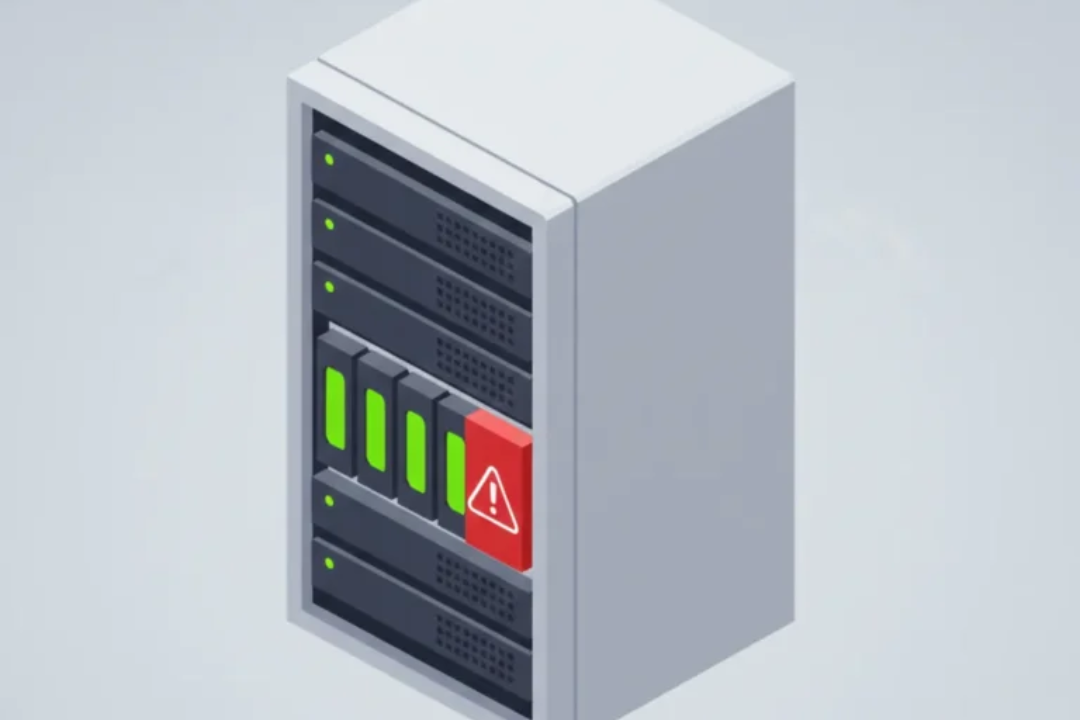
If software fixes fail, hardware may be the issue.
Check:
- Disk health and RAID status
- BIOS disk detection
- SMART warnings
If the disk is failing, continued boot attempts may cause data loss.
How to Identify Hardware vs Software Problems
Likely software issue:
- Safe Mode works
- Disk is detected
- Issue started after update
Likely hardware issue:
- Disk not detected
- Clicking or slow disks
- CHKDSK fails repeatedly
Knowing this saves time and prevents damage.
When Boot Repair Fails: What to Do Next
If none of the repairs work:
- Review recovery logs
- Stop repeated boot attempts
- Focus on data safety first
In complex cases involving disk failure, RAID damage, or inaccessible data, professional recovery assistance may be the safest option.
How to Prevent Windows Server Boot Issues
Prevention is easier than recovery.
Best practices:
- Test updates before production
- Use regular backups and snapshots
- Monitor disk health
- Avoid forced shutdowns
- Keep recovery media ready
Final Thoughts:
Windows Server boot problems can seem scary but most can be fixed. Start with basic checks, use safe fixes and avoid rushing into risky steps.
With regular maintenance and proper backups, even major boot issues can be fixed with little downtime.