
When a virtual machine keeps restarting again and again , it is usually stuck in a reboot loop. This situation looks serious , but in most cases , the root cause can be found and fixed step by step without panic.
In this guide , you’ll learn what a VM reboot loop is , why it happens , how to fix it on Linux and Windows VMs , when to contact support and how to prevent this issue in the future.
This guide explains:
- What a VM reboot loop is
- Why it happens
- How to fix it on Linux and Windows VMs
- When to stop and contact support
- How to prevent it in the future
What Is a VM Reboot Loop?
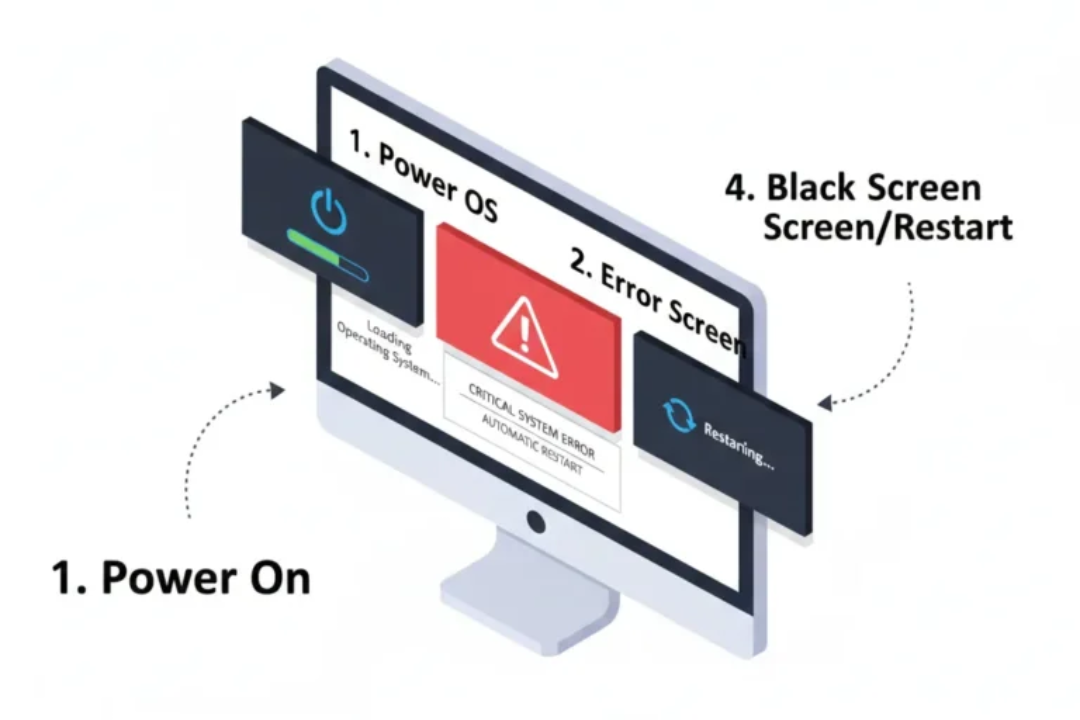
A VM reboot loop happens when a virtual machine tries to start but fails during the boot process. Instead of stopping , the VM automatically restarts and repeats the same failed process again and again.
A VM reboot loop means your virtual server:
- Starts booting
- Fails during startup
- Automatically restarts
- Repeats this cycle endlessly
You may see:
- No login screen
- A frozen console
- A blue screen (Windows)
- Kernel or disk errors (Linux)
Important difference:
- Server down → VM is off or unreachable
- Reboot loop → VM is running but never fully starts
Why Virtual Machines Get Stuck in a Reboot Loop
Reboot loops usually happen when something critical breaks during the boot process. This often occurs after updates , migrations or forced reboots that interrupt normal system operations.
Common Causes (High Level)
Most reboot loops happen because of:
- Corrupted boot disk
- Failed OS, kernel, or Windows update
- Full disk (especially /boot on Linux)
- Filesystem errors after forced shutdown
- Driver or kernel panic
- Cloud host restart during disk writes
Reboot loops often start after updates , migrations , or force reboots.
Linux vs Windows (Quick Difference)
Linux and Windows handle boot processes differently , so reboot loop causes also vary slightly between them.
Linux VMs
- Broken kernel
- /boot partition full
- Filesystem errors
- GRUB issues
Windows VMs
- Failed Windows updates
- Blue Screen of Death (BSOD)
- Boot configuration corruption
- Disk errors
First Things to Check (Always Start Here)
Before trying advanced fixes, always start with basic checks. These steps often save time and prevent unnecessary damage.
Check Cloud Provider Status
Sometimes the problem is not your VM but the cloud provider itself. Always confirm this first.
Before touching the VM:
- Check your provider’s status page
- If there is an outage, do not reboot repeatedly
Sometimes the issue is not your VM.
Check the VM Power State
Sometimes the problem is not your VM but the cloud provider itself. Always confirm this first.
From the cloud panel:
- Running + restarting → reboot loop
- Stopped → start it once
- Rapid restarts → stop troubleshooting and inspect console
Access the VM Console (Very Important)
When SSH or RDP does not work , the console is your best source of truth. It shows exactly where the boot process is failing.

If SSH or RDP does not work:
- Open the VM console / serial console
- This shows what the VM is failing on
Look for:
- Disk errors
- Kernel panic
- Windows recovery screen
- Endless loading or restarting
Console access is the most important step.
If the VM Boots but Keeps Restarting
Sometimes the VM appears to boot but crashes shortly after. In such cases , disk and log checks usually reveal the problem.
Check Disk Space
A full disk can stop important system files from loading and cause repeated reboots.
Why this matters:
A full disk can stop boot files from loading.
Linux:
- Root (/) full
- /boot full (very common after kernel updates)
Windows:
- System drive full
- Update rollback failing
A full disk alone can cause a reboot loop.
Check System Logs (Basic Level)
Logs explain why the system is restarting. You don’t need to understand every line , just look for repeating errors.
You don’t need to read everything.
Linux:
- Look for disk, kernel, or mount errors
- Errors repeating after each reboot are key
Windows:
- Blue screen flashes then restarts
- Automatic restart hides the real error
Logs usually explain why the reboot happens.
Linux VM Reboot Loop Fixes
Linux reboot loops are often related to kernel or filesystem problems , especially after updates.
Boot Using an Older Kernel (Safe Method)
If Linux was updated recently, the newest kernel may be broken.
If Linux updated recently:
- Boot using an older working kernel
- This often brings the VM online immediately
Why this works:
- The latest kernel may be broken
- Older kernel is still stable
Do not use recovery mode unless needed.
Fix a Corrupted or Failed Kernel
Kernel corruption usually happens when updates fail or the VM reboots during installation.
Signs:
- Kernel panic
- Update failed midway
- VM rebooted during kernel install
Fix approach:
- Boot with older kernel
- Reinstall the broken kernel
- Remove failed kernel versions carefully
Never remove the kernel you are currently using.
Fix Filesystem Errors
Forced shutdowns can leave the filesystem in an unsafe state, triggering reboot loops for data protection.
If the VM was force stopped:
- Filesystem may be inconsistent
- Boot stops to protect data
Filesystem checks often fix reboot loops caused by:
- Power loss
- Forced shutdown
- Host crashes
Windows VM Reboot Loop Fixes
Windows reboot loops usually appear after updates , crashes or system file corruption.
Use Advanced Boot Options
Advanced Boot Options allow Windows to repair itself without manual disk work.
If Windows won’t load:
- Enter Advanced Boot Options
- Try:
- Startup Repair
- Safe Mode
Many Windows reboot loops are fixed here.
Repair the Boot Disk Using Another VM
If Windows cannot fix itself , repairing the boot disk externally is the safest method.
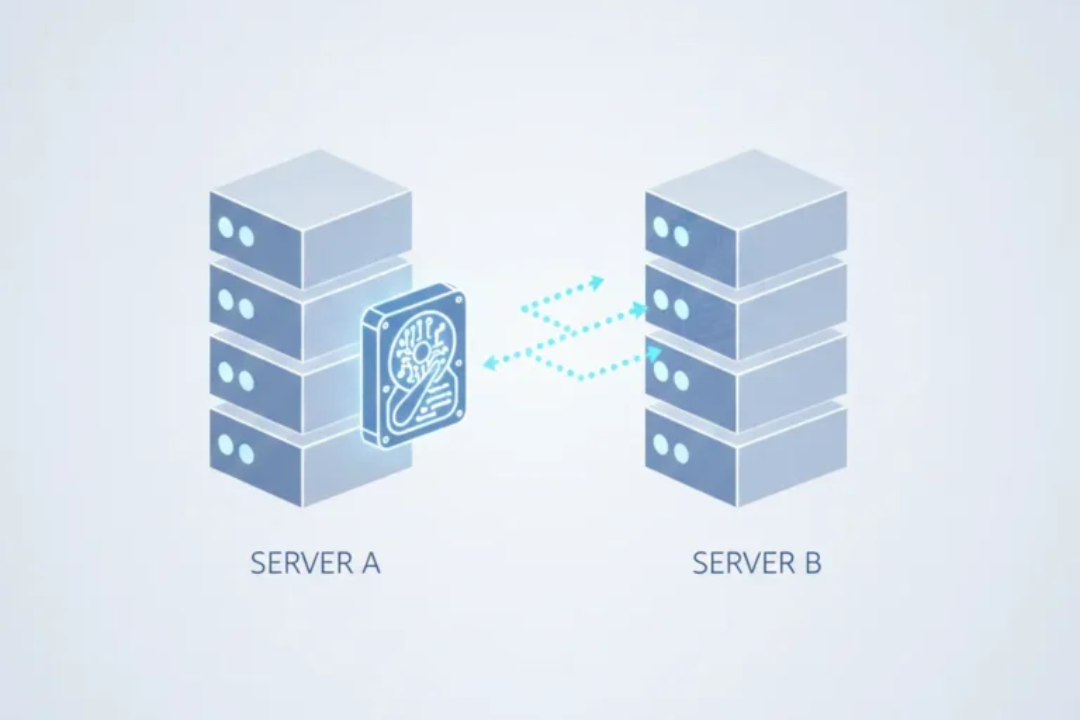
If Windows cannot repair itself:
- Stop the broken VM
- Detach its boot disk
- Attach it to a healthy Windows VM
- Run disk and system repairs
- Reattach it to the original VM
This method is safe and widely used.
Blue Screen (BSOD) Reboot Loops
Windows often hides crash details by restarting automatically after a blue screen.
Windows often:
- Crashes
- Automatically restarts
- Hides the error
Console or serial logs reveal:
- Driver failures
- Disk errors
- Kernel crashes
Once identified , the fix becomes clear.
When to Use Rescue / Recovery Mode
Rescue mode should be used only when normal recovery options fail.
Use rescue mode if:
- VM never reaches login
- Boot disk is corrupted
- Firewall locks you out
Rescue mode lets you:
- Access disks safely
- Fix files manually
- Recover data
Avoid changing things blindly.
When You Should Stop and Contact Support
Some issues are infrastructure-level and cannot be fixed from inside the VM.
Contact support if:
- VM fails even in rescue mode
- Disk shows hardware-level errors
- Multiple VMs fail at the same time
Send support:
- VM ID or name
- What changed before the issue
- Console error messages
- Steps you already tried
This speeds up resolution.
How to Prevent VM Reboot Loops in the Future
Good maintenance habits can prevent most reboot loop issues.

Simple habits prevent most issues:
- Avoid forced shutdowns
- Monitor disk space
- Clean old Linux kernels
- Reboot only after updates finish
- Test updates on staging VMs
- Take snapshots before major changes
Prevention is easier than recovery.
Quick Checklist: VM Reboot Loop Troubleshooting
Use this checklist when you are in a hurry.
- Check provider status
- Stop repeated reboots
- Open VM console
- Check disk space
- Review logs
- Try older kernel (Linux)
- Use recovery options (Windows)
- Use rescue mode if needed
- Contact support with details
FAQs
What causes a VM to reboot continuously?
Failed updates, disk errors, kernel crashes, or corrupted boot files.
Can a reboot loop fix itself?
Sometimes, but repeated reboots can make it worse.
Is rebooting again and again dangerous?
Yes. It can corrupt disks further.
Can a full disk cause a reboot loop?
Yes, very commonly on both Linux and Windows.
Should I detach the boot disk?
Only if normal recovery fails.
Final Thoughts:
A VM in a reboot loop can look scary but it can usually be fixed. Stay calm, follow the steps and don’t make sudden changes.
Most importantly:
Console first, panic last.